What are Test Flows?
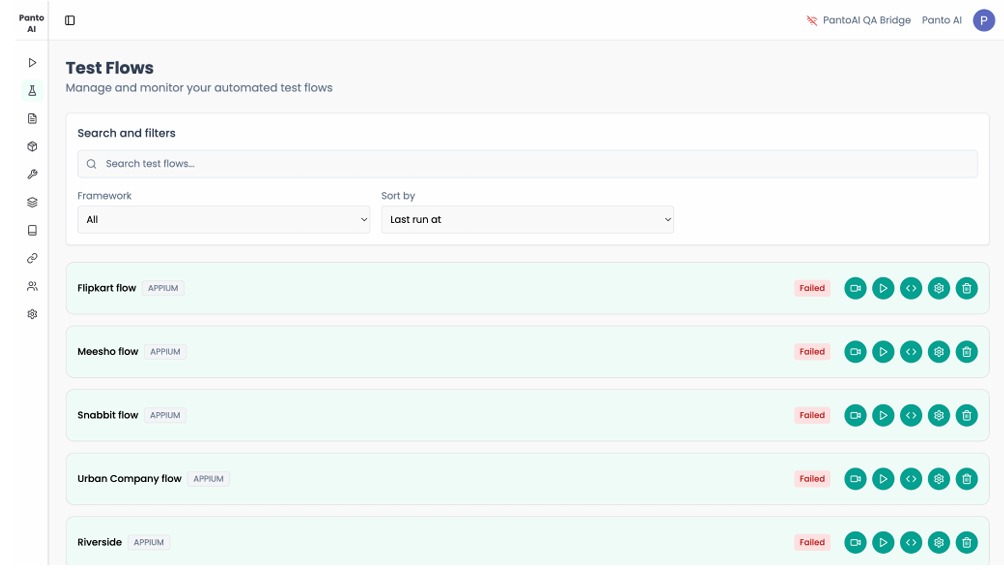
A Test Flow is a saved execution of a workflow. When the Agent completes execution of a feature correctly, click Save and assign a name. Saved flows can be searched, rerun, automated, and executed across multiple devices.
Different Buttons on Individual Test Flows

Status
Shows the current state of a test flow. A flow can be In Progress while it is running, Passed when all steps complete successfully, or Failed if an issue is detected during execution. This helps teams quickly understand the health of each flow at a glance.
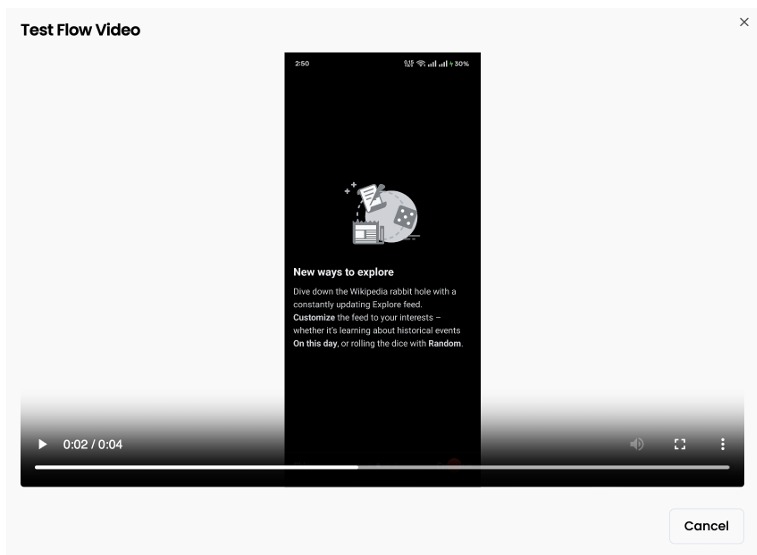
View Video
Available once a run is completed. Clicking this opens a short playback of the exact steps executed on the device, making it easy to review behavior, validate flows, or understand why a run failed without digging into logs.
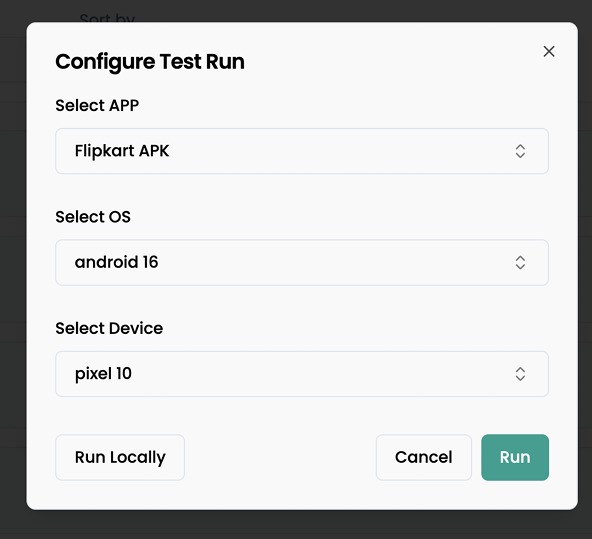
Run
Opens the execution panel where you can choose the device, operating system, and app version. This allows the same flow to be run across different environments, devices, OS, and systems without any changes to the test definition.
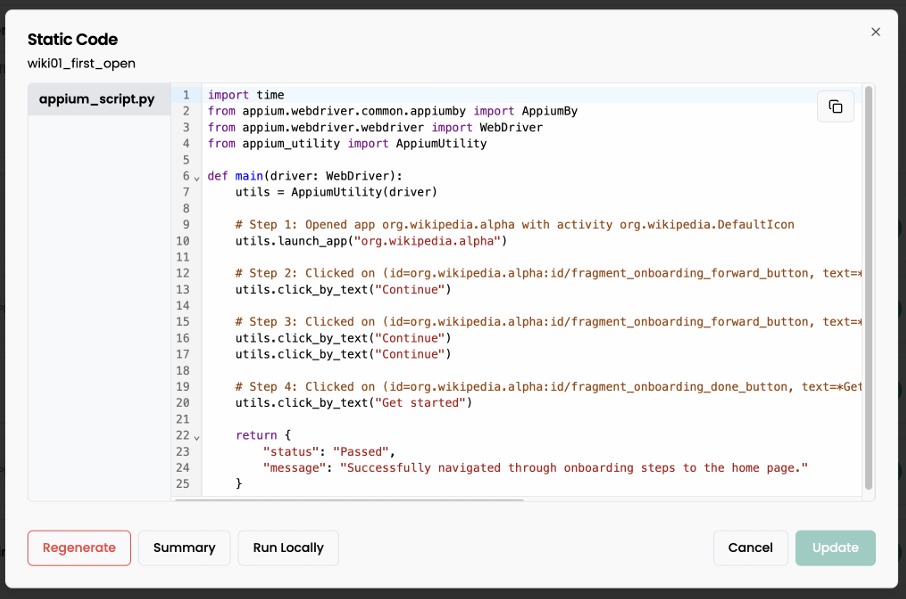
View Static Code
Displays the auto generated Appium or Maestro code for the flow. Teams can directly edit or extend this code if they want more control, custom logic, or deeper integration with existing test suites. You can also get a quick summary of steps executed or regenerate the whole script.
Modify Flow
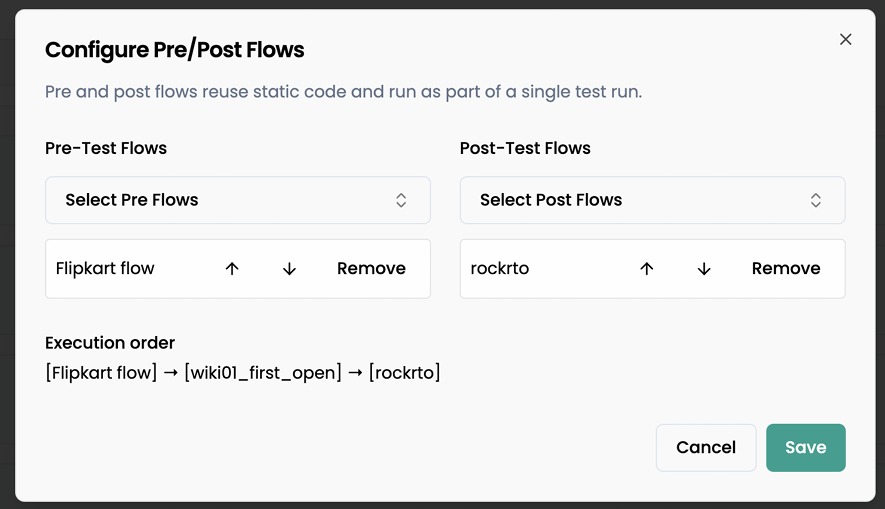
You can combine multiple flows to create a complete end to end regression suite. Each flow represents a specific user journey, and Panto lets you stitch these journeys together to reflect real world app usage.
Using pre flows and post flows, you can define what should run before and after a core test flow. For example, a pre-flow can handle common setup steps like login or onboarding, while a post flow can validate cleanup actions such as logout or state reset.
Once combined, the entire regression suite can be executed as a single test across any device and OS combination. This approach reduces duplication, keeps flows modular, and makes it easy to maintain large test suites while still testing the full user journey end to end.
Delete
Removes a flow that is no longer required, keeping the dashboard clean and focused on active and relevant tests.